“Invalid username or password”
The app refuses the details.
- Re-type each field slowly; check upper and lower case.
- Remove any space at the end of a field.
- Make sure you used the login option, not the playlist option.
Activation
Your login details arrive as soon as your payment is confirmed. Here is what you receive, where to enter it and how to fix the errors people hit most on day one.
01 Your welcome message
Keep this message safe — it is everything you need to install LayerSeven TV on any supported device.
A server address, a username and a password — used by most player apps.
A single web address (M3U) for apps that prefer playlists.
Chosen for your device, with a note if that app charges its own activation fee.
When your plan started and when it ends, so renewals are simple.
02 Step by step
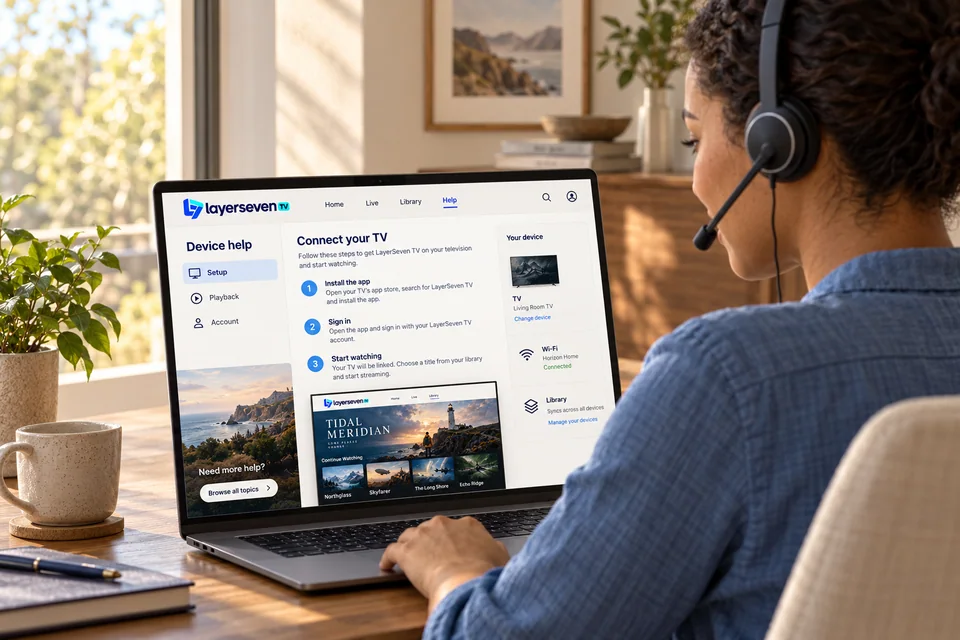
Use your device’s app store where possible. Device-specific instructions are in the installation guide.
Pick “Login with Xtream Codes API” (or similar) for login details, or “Add playlist / M3U URL” for a playlist link.
Not sure which option your app means? Send us a photo of the screen.
Copy the server address including “http://” and the port number. Usernames and passwords are case-sensitive — watch for a space at the end.
The first load can take a minute while the app downloads channels, the library and the guide. Don’t close it halfway.
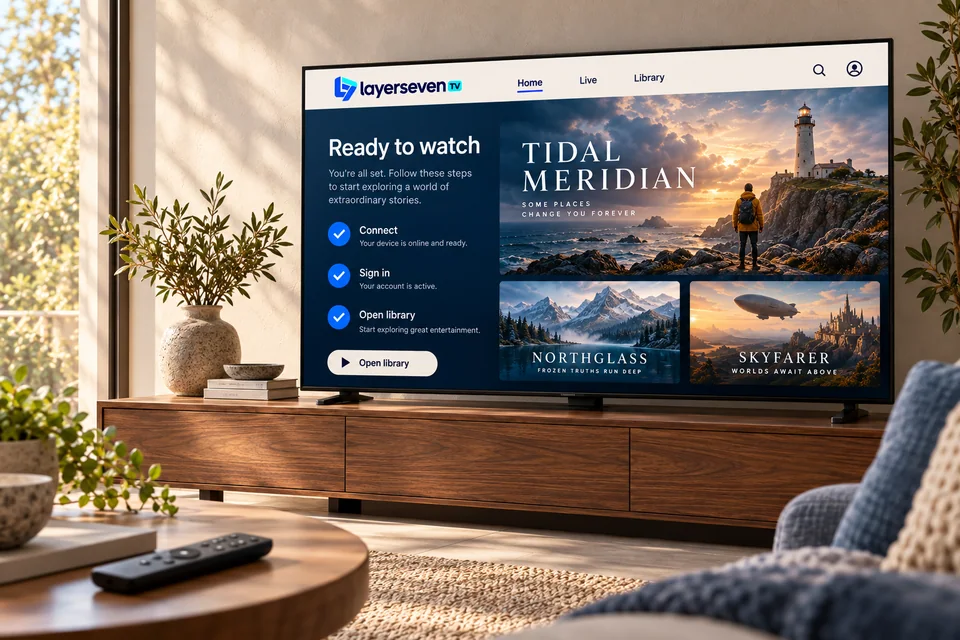
If both play smoothly, you’re done. Add a few favorites now and the next evening starts in two clicks.
03 Two methods
| Question | Login details (Xtream) | Playlist link (M3U) |
|---|---|---|
| What you enter | Server, username, password | One long web address |
| Library & guide | Usually load automatically | May need a separate guide link |
| Typing on a TV remote | Short fields — easier | Long link — easier to paste on a phone |
| Our recommendation | Most devices and apps | Apps without a login option |
04 Day-one errors
The app refuses the details.
The app can’t connect at all.
The app opens with an empty list.
A player shows a trial or activation screen.
Nearly there
A picture of what you see is usually all we need to tell you exactly which button to press next.
Prefer email? [email protected]